A zoom effect in After Effects can instantly add energy, focus, and emotion to your video. Zooms guide the viewer’s eye, control pacing, and elevate storytelling when used with purpose. From subtle push ins to dramatic snap zooms, each style creates a different emotional response.
The main types of zoom effects include the standard zoom, the super (or crash) zoom, and the dolly zoom. Each one serves a unique creative goal. In this article, we’ll discuss these effects and how to pull them off in After Effects.
Table of contents
How to zoom in After Effects
Creating a standard zoom
A good ol’ fashioned zoom effect in After Effects relies on simple scale animation. This approach mimics a natural camera push towards your subject. It works well for interviews, product close-ups, and storytelling moments that need subtle emphasis.
Given how most footage is now shot in 4K, this zoom in capability is more realistic than ever because there’s more pixel space to work in.
1. Import your footage into a new composition
Start by importing your footage into a new composition that matches the clip’s resolution and frame rate.
2. Open the Scale property, then set your first keyframe
Next, select the video layer in the timeline and open the Scale property under Transform.
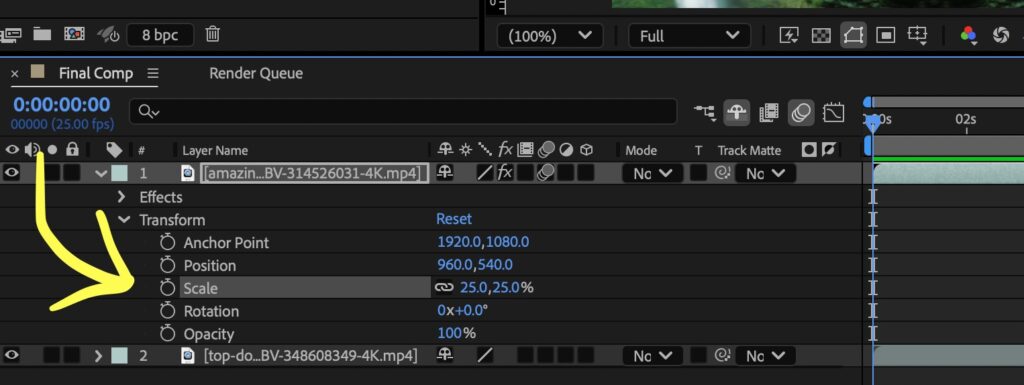
3. Set your final keyframe and increase the Scale volume
Advance the playhead to where you want the end of the zoom effect to be and increase the Scale value until the framing feels right.
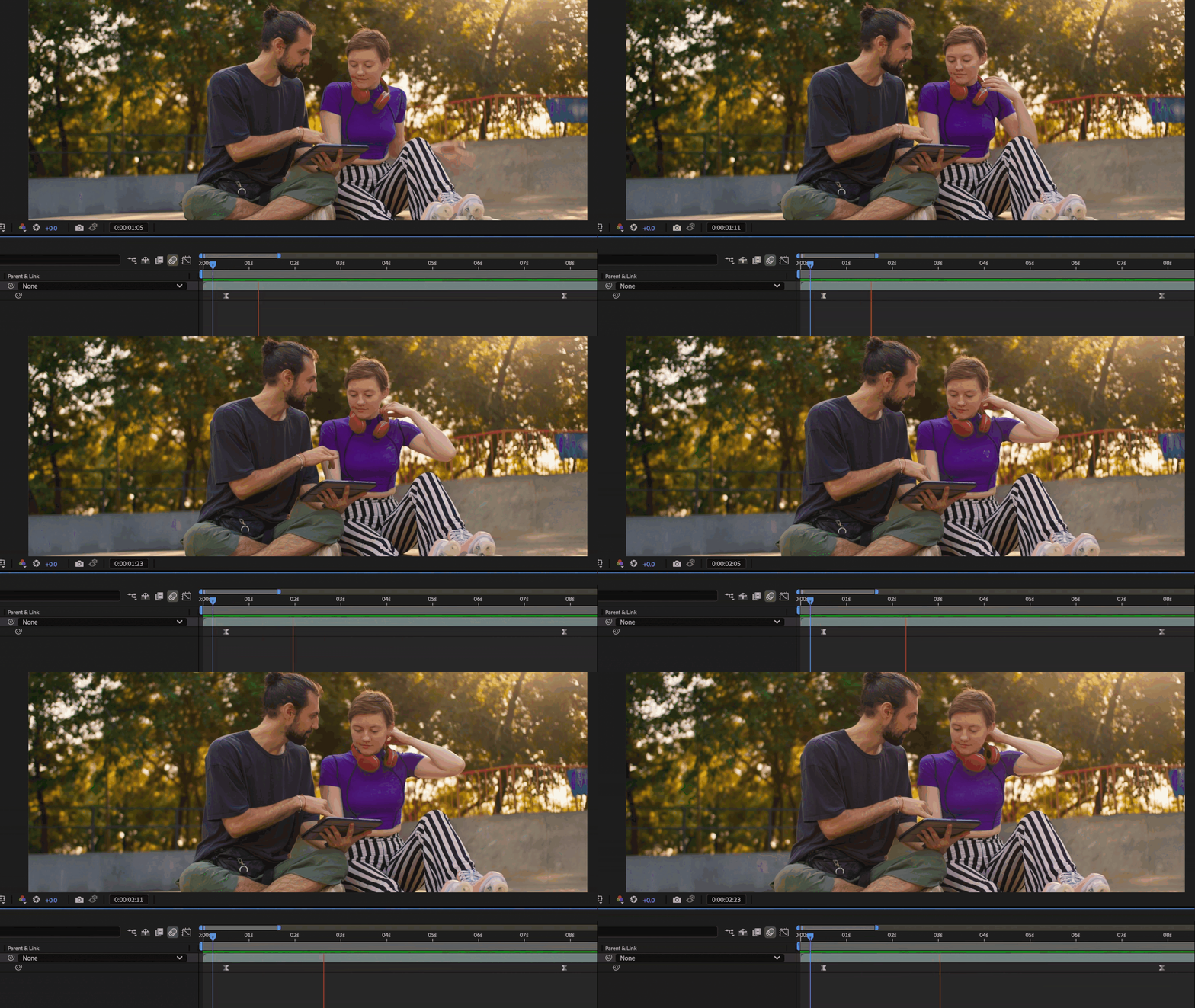
Be sure to preview the motion to make sure it looks how you want it to. At first, the movement may feel stiff, so make sure to apply Easy Ease to both keyframes to smooth out the animation.
Optional: Refine the curve using the Graph Editor
For a more natural acceleration on your zoom effect, open the Graph Editor and refine the curve.
This process creates a clean, professional zoom effect in After Effects that draws attention without distracting the viewer.
Creating a zoom transition
A zoom transition blends two clips together using opposing scale animation. This technique maintains that quick pace to your video and avoids hard, bracing cuts.
1. Add Scale keyframes to your first clip where you want the zoom transition to start
Place your two clips back to back in the same composition. On the first clip, add Scale keyframes near the end or where you want the transition to begin. Then place the playhead forward a few frames and increase the Scale to create a zoom.
Be sure to turn on Motion Blur or add Radial Fast Blur. This will create a natural looking motion to the zooming effect. You can find the “three circle” symbol for Motion Blur in the Timeline panel.
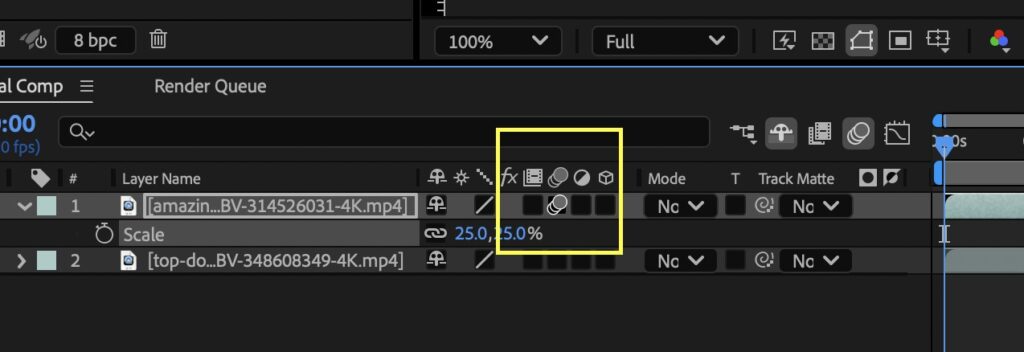
To add the Radial Fast Blur effect, find it in the Effects & Presets panel and then drag it onto the clip.
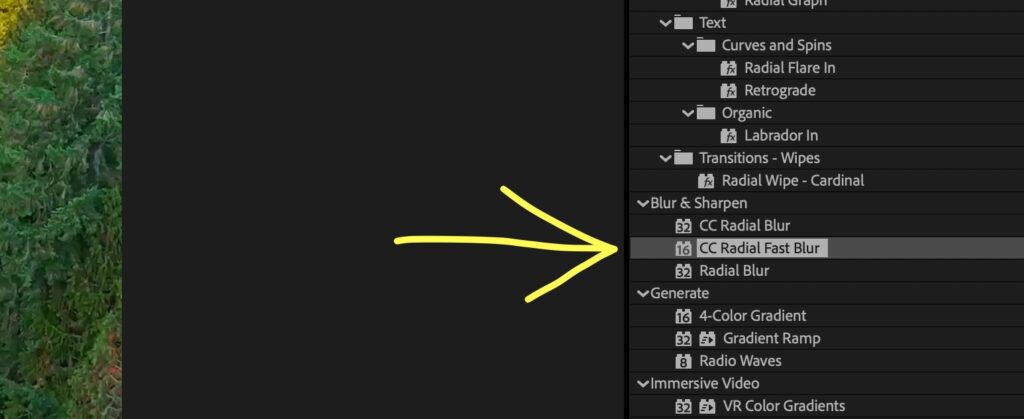
2. Add Scale keyframes to the beginning of your second clip
On the second clip, add your Scale keyframes at the beginning to be about 50%. The image should be in the middle of the frame over the first clip, like this:
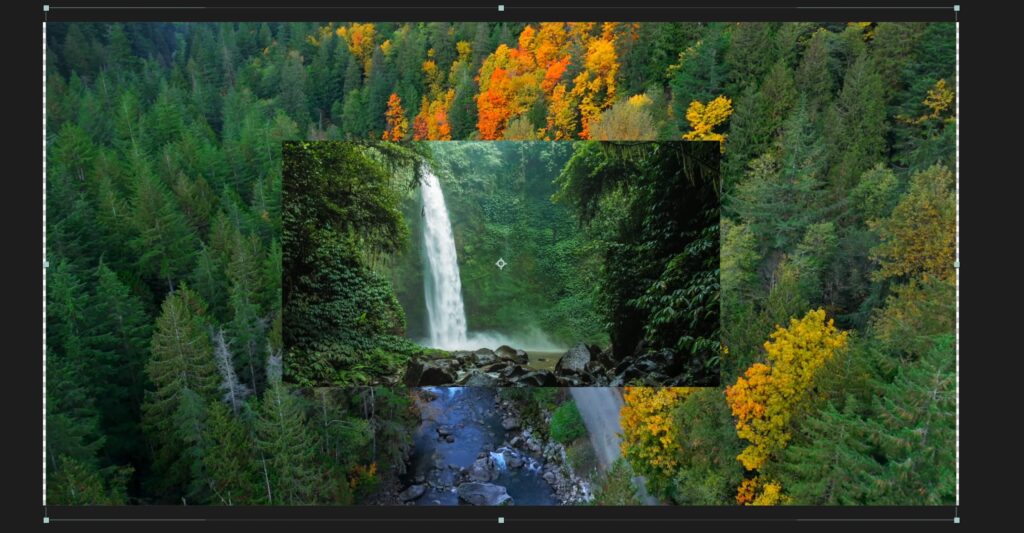
Next you’re going to zoom into the image by increasing the Scale. Your first Scale keyframe should be about 50% and your second Scale keyframe should be 100%.
Once you’ve done this, add Motion Blur and/or Radial Fast Blur, similar to the first clip.
3. Add CC RepeTile to the second clip
Then, go over to the Effects & Presets panel.
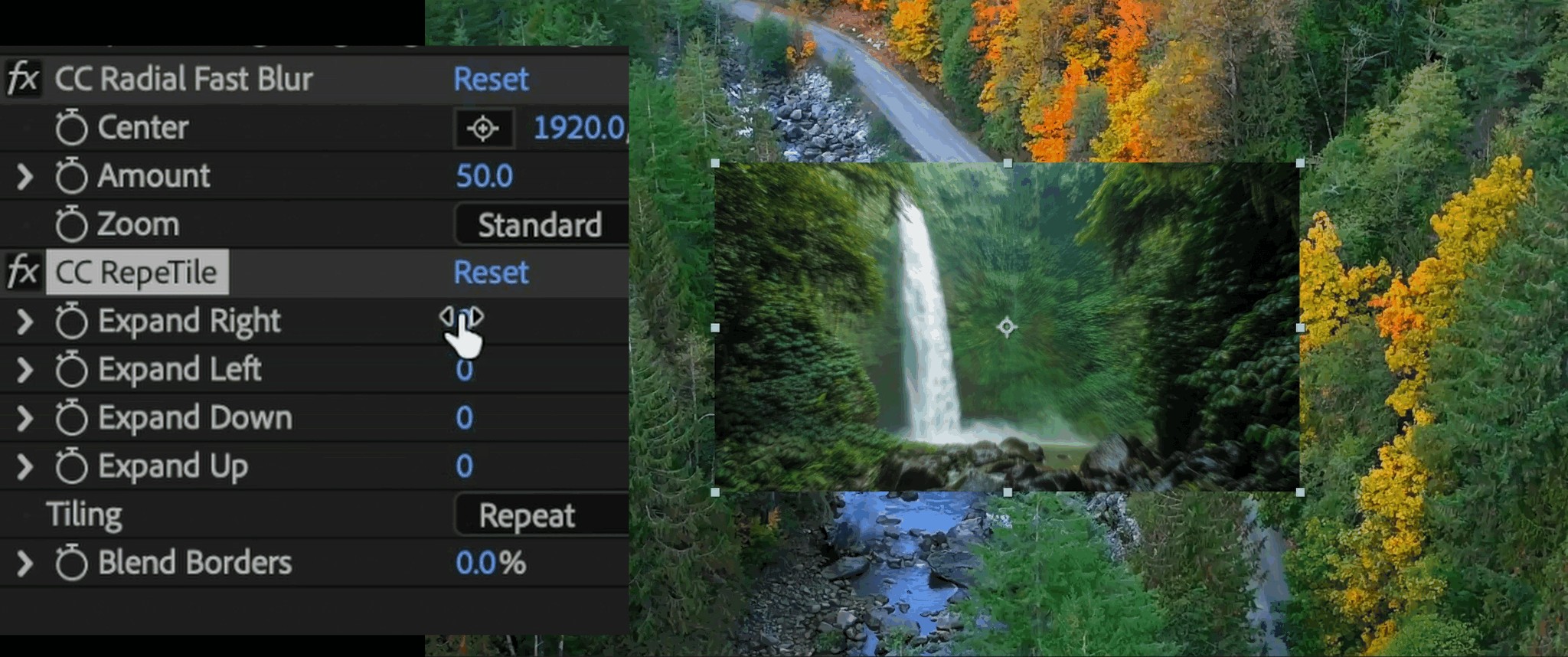
Add CC RepeTile to the second clip that you’re transitioning to and increase all of the Expand directions in the Effects Control panel. This will create multiple “Tiles” of the clip.
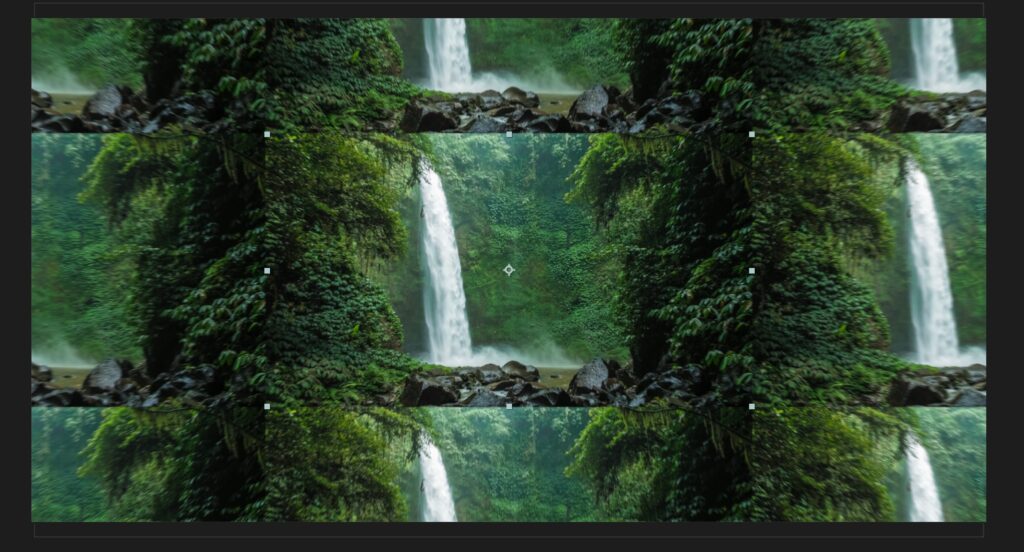
Next, to blend the clips together and create a more seamless look, go over to Tiling and select Unfold. The image will look something like this.
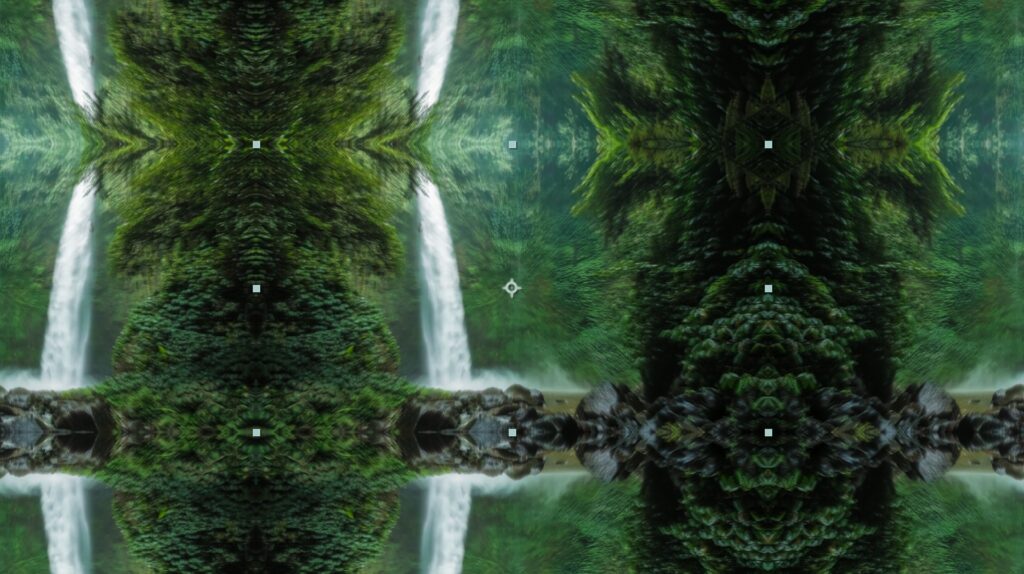
This effect is added to fill in the frame as the transition occurs. Once you play it back as you zoom in, the zoom transition will be complete!
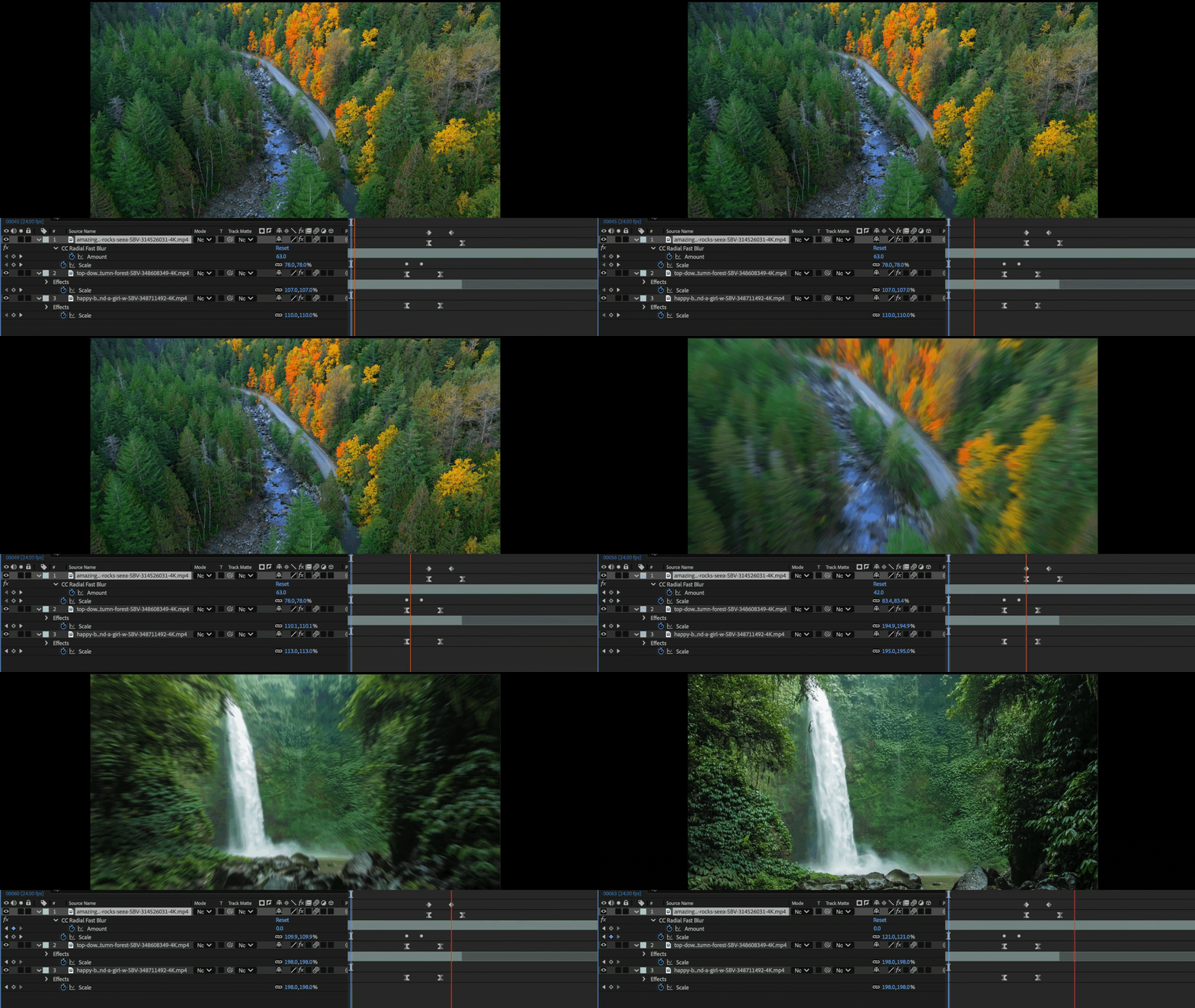
If you want to bypass this entirely, check out the pre-made zoom After Effects templates from Storyblocks below, which offer different variations of zoom transitions and effects.
Creating a super zoom or hyper zoom effect
A super zoom, or crash zoom, delivers an extreme burst of motion that imitates a fast snap zoom from an actual camera. You’ve definitely seen this before in films from directors like Wes Anderson or Quentin Tarantino.
This dramatic zoom effect works best for dramatic reveals, beat drops, and high energy videos.
1. Add two Scale keyframes a few frames apart on your clip
To recreate this type of super zoom effect inside After Effects, all you need to do is add two Scale keyframes only a few frames apart on your clip. Leave the first keyframe near 100%.
Push the second keyframe to 300% or higher to create that aggressive speed.
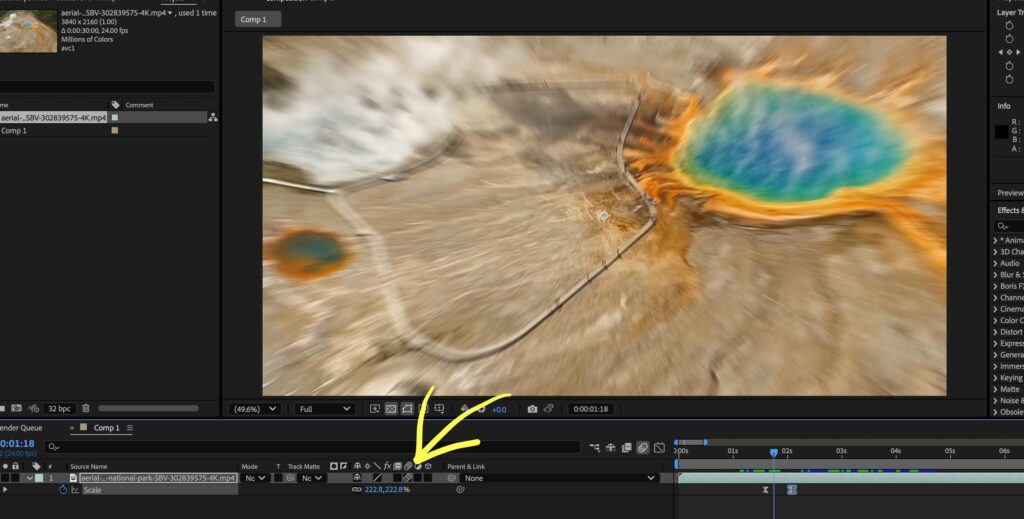
2. Add in additional effects to create a more dramatic effect
Now we want to add some additional effects to create a more dramatic visual.
First, we’ll turn on Motion Blur and increase the shutter angle for heavy streaking. Next, add Radial fast blur or Camera Lens blur and animate the blur to peak half way through the zoom. Then, set the keyframes to zero at the end of the zoom.
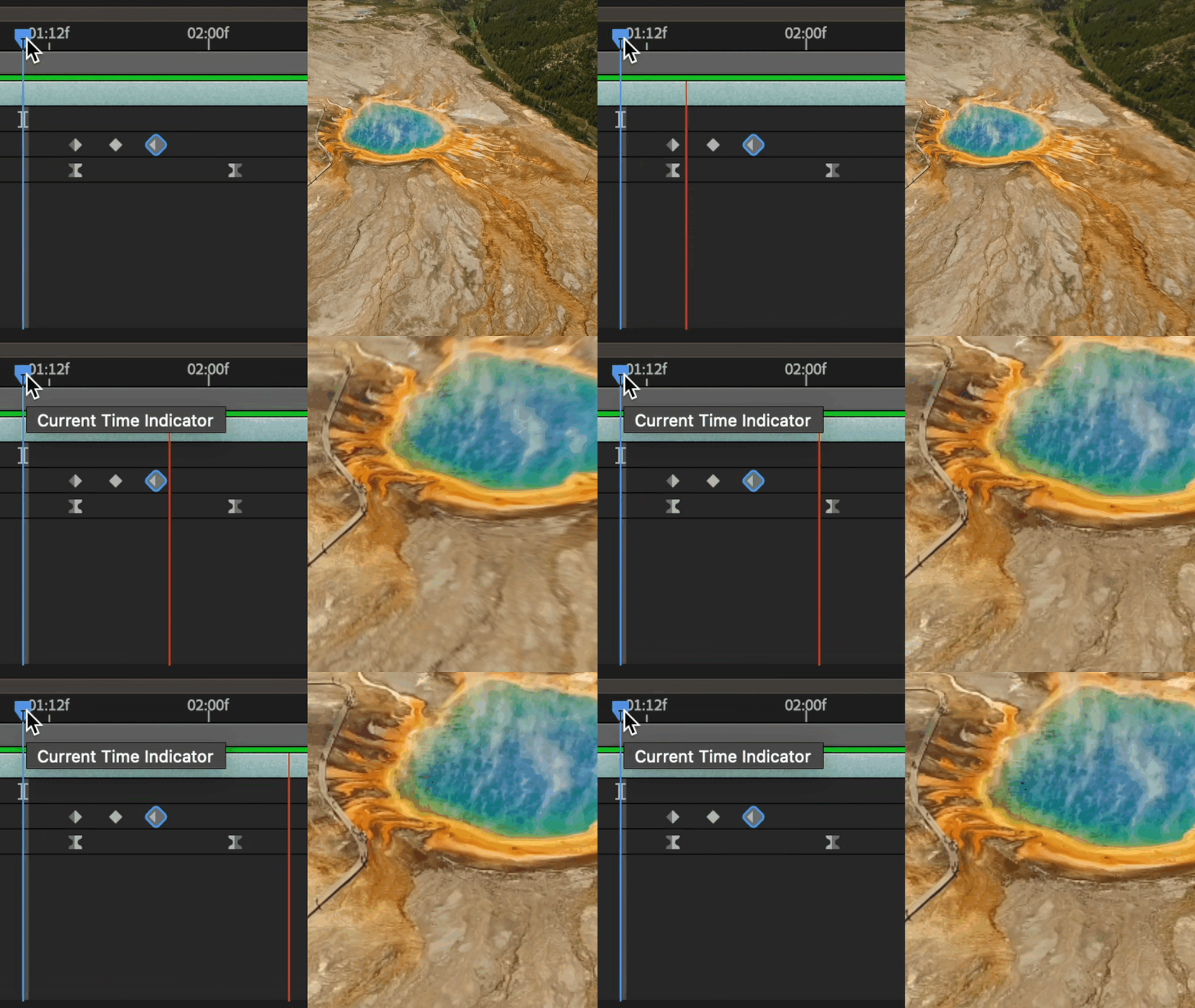
The final result should feel explosive and intentional. Super zooms work best in short bursts, but if they’re overused they can feel like a gimmick – so use them sparingly for the best result.
Creating a dolly zoom
A dolly zoom creates a visual illusion where the subject stays the same size while the background stretches or compresses. This effect feels cinematic, jarring, and unsettling.
It works best for dramatic reveals and psychological moments. You’ve undoubtedly seen this in many classic scenes in Spielberg films.
Achieving this effect is pretty simple. Find a clip that is already zooming in or out, then add Scale keyframes that decrease (less than 100%) or increase (over 100%) in the opposite direction of the camera movement.
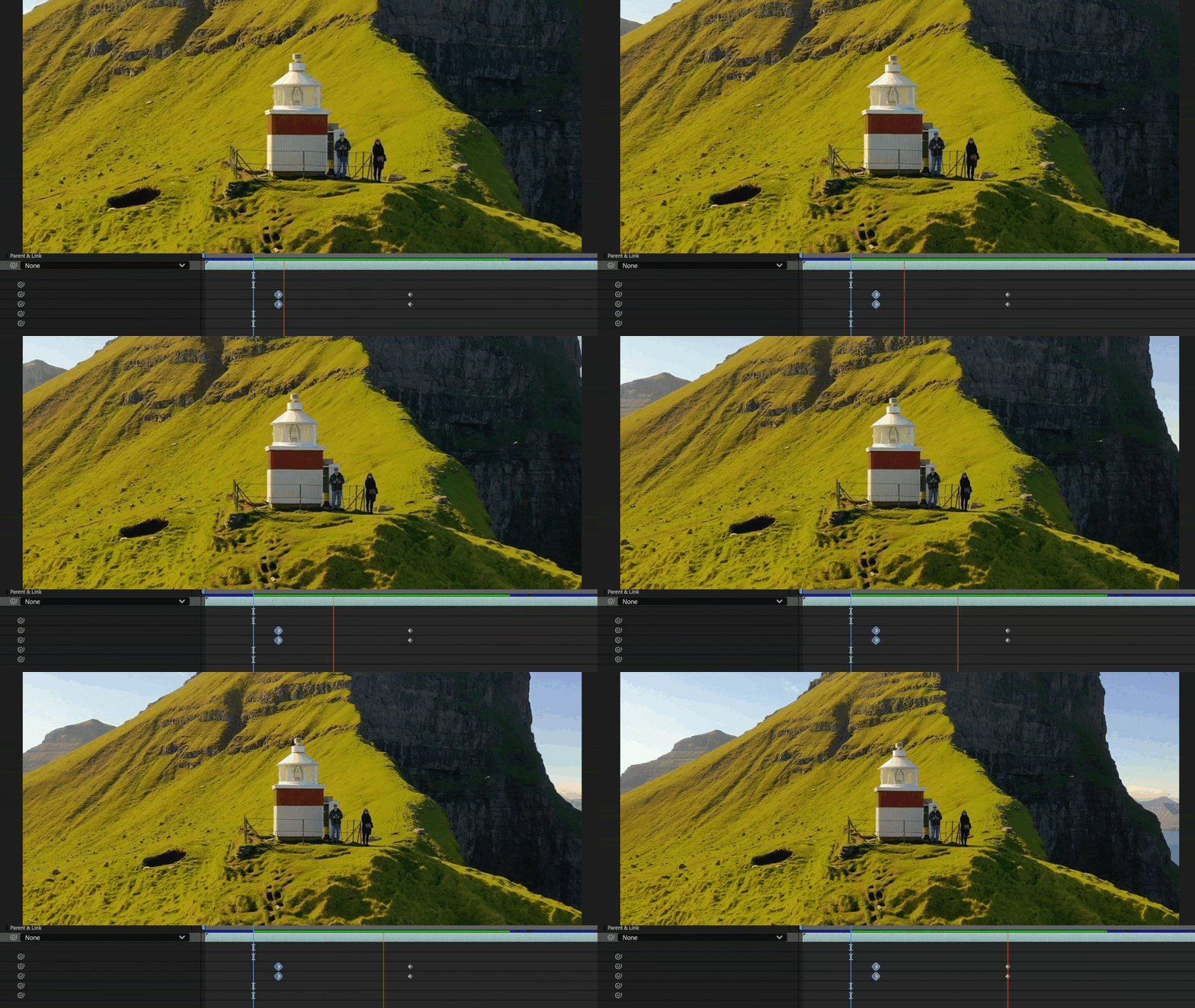
As the camera pulls away, the background perspective shifts dramatically while the subject remains stable. Fine tune the timing and add subtle motion blur. This technique takes more setup, but it creates one of the most iconic zoom looks in filmmaking.
Our very own Lewis McGregor created a tutorial for this effect a few years ago and the tutorial remains just as relevant as ever. It also introduces a few new ways to center the frame and pull of the effect inside of After Effects.
Ways to use zoom effects in your videos
A zoom effect in After Effects works best when it supports the story rather than just showing off the technique.
For emotional impact, use subtle push-ins
Subtle push ins increase emotional impact in interviews and dialogue scenes. If I’m shooting an interview by myself, I almost always incorporate a slow zoom in post, to add some movement and production value that weren’t really there on the day.
Knowing the best zooms to use for different kinds of videos
Different kinds of content call for different types of zoom effects. Snap zooms add punch to comedy, gaming, and reaction videos, making them a staple for content creators.
Zoom transitions maintain momentum between unrelated shots in travel videos and montages, while dolly zooms can heighten tension in narrative moments and dramatic reveals.
Product videos often use slow zooms to highlight craftsmanship and detail. Educational videos use controlled zooms to direct attention toward important parts of the screen or objects and subjects. On the complete opposite side of the spectrum, music videos rely on hyper zooms to speed up the overall rhythm and visual impact.
Matching the speed and style of the zoom to the emotional tone of the scene makes sure that the effect always feels intentional and earned.
Save time and edit faster with zoom effect templates for After Effects
Building every zoom effect manually gives you flexibility, but templates save valuable time when deadlines are tight. Storyblocks offers professional templates for After Effects that you can easily drop directly into existing projects.
This Lens Zoom Effect Transitions template delivers fast optical-style zooms with built-in motion blur and distortion for high-energy edits.
The Zoom Shot After Effects template focuses on organic camera-style zoom-ins that feel natural and smooth. It works well for interviews, promos, and reveal moments.
This After Effects Zoom Logo template helps animate your organization or clients’ branding with clean zoom motions and polished easing for intros, outros and social clips.
Master zoom effects and more with a Storyblocks subscription
A zoom effect in After Effects remains one of the most effective tools in modern video editing. Standard zooms guide the audience’s attention. Zoom transitions keep the pace. Super zooms deliver impact. Dolly zooms create cinematic tension. Mastering each style gives you full creative control over how viewers experience motion in your edits.
Once you understand scale animation, easing, motion blur, and camera space, you can design zooms that feel purposeful and refined. Zooms should always serve the story and never distract from it. When they do, they become one of the most powerful tools in your toolkit.
Many editors combine templates with custom animation for maximum flexibility. This approach keeps projects efficient while letting us, the creators, keep creative control. Templates also act as learning tools for editors who have more experience and advanced animation techniques.
Storyblocks provides a full library of After Effects templates for transitions and motion graphics to help you edit faster and easily add in advanced effects to your videos. Explore their full collection of After Effects templates, high-quality footage, music, and more, then sign up to get unlimited downloads of their library of over 6 million royalty free stock assets.