A well-timed zoom can save a boring shot or bring attention to a key detail in the frame. While you usually handle this in person with a zoom lens, you often need to add movement during the edit as well.
Luckily, Premiere Pro provides the tools you need to handle scaling and positioning, meaning you can animate a zoom with just a few clicks.
Let’s take a look at how to zoom in to a clip in Premiere Pro. You’ll also find a few of our best zooming transitions—some animated effects that will bring new life into your projects, available with a Storyblocks subscription.
How to zoom in on Premiere Pro
Here is the most efficient way to zoom in Premiere Pro, using the Effect Controls panel.
Step 1: Import your clip
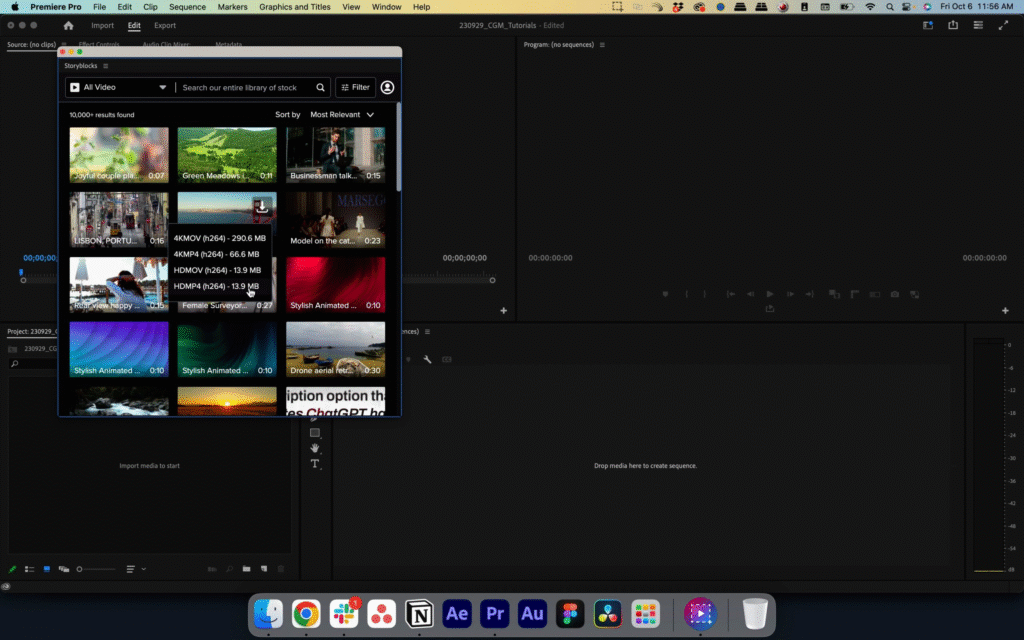
Start by importing a video clip into Premiere Pro that you want to zoom in on. If you have the Storyblocks Plugin for Adobe Creative Cloud, you can easily search through our library from right inside your editor to find footage for this tutorial.
Then, drag the clip into your timeline so that it’s ready for a Premiere Pro zoom in effect.
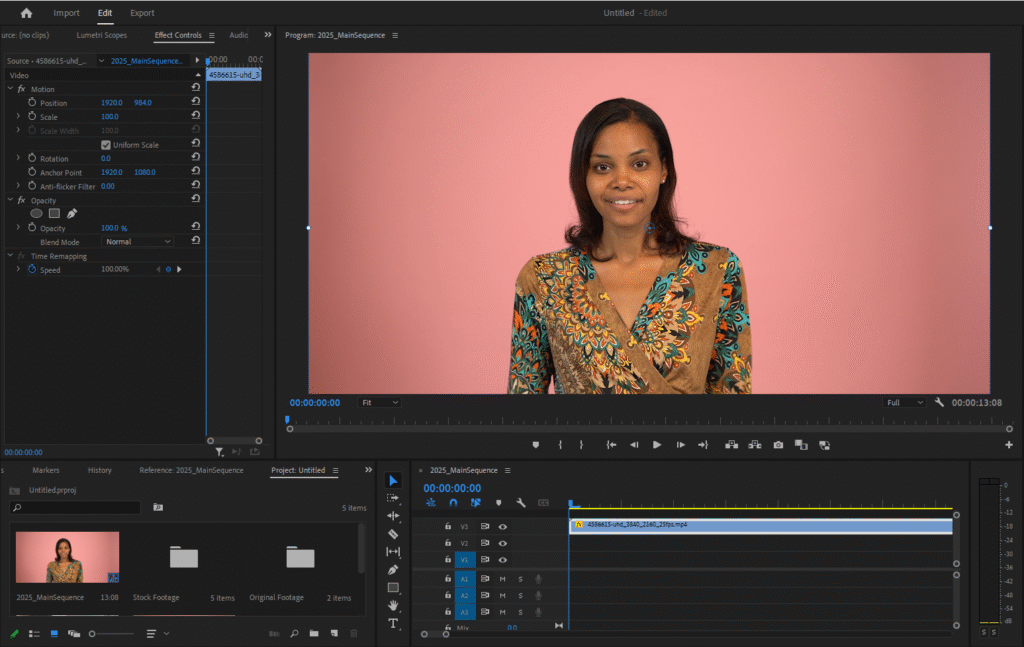
Step 2: Access the Effect Controls panel
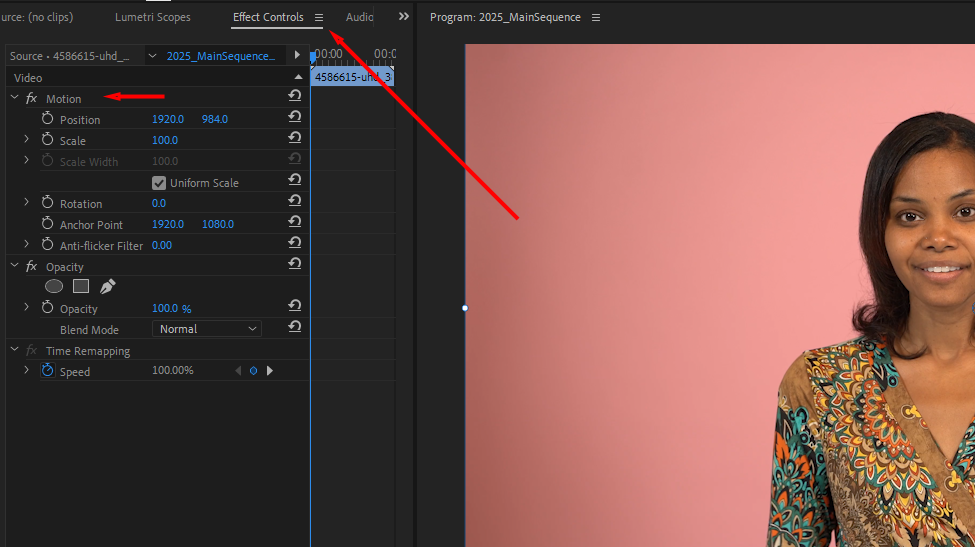
With your clip selected on the timeline, navigate to the Effect Controls panel. If you don’t see it, go to Window > Effect Controls in the top menu to open it.
Step 3: Set your starting keyframe
In Premiere Pro, you zoom in on video using the Scale setting. First, find the Motion dropdown in the Effect Controls panel.
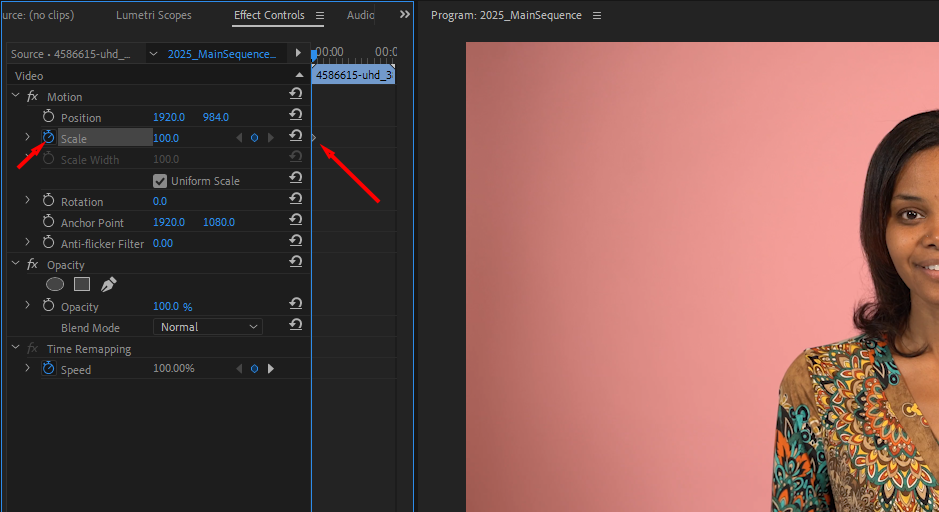
Once you’ve expanded the menu, move your playhead to the frame where the zoom should start. Click the stopwatch icon next to Scale to drop your first keyframe, which locks the size at 100%.
Step 4: Animate the zoom
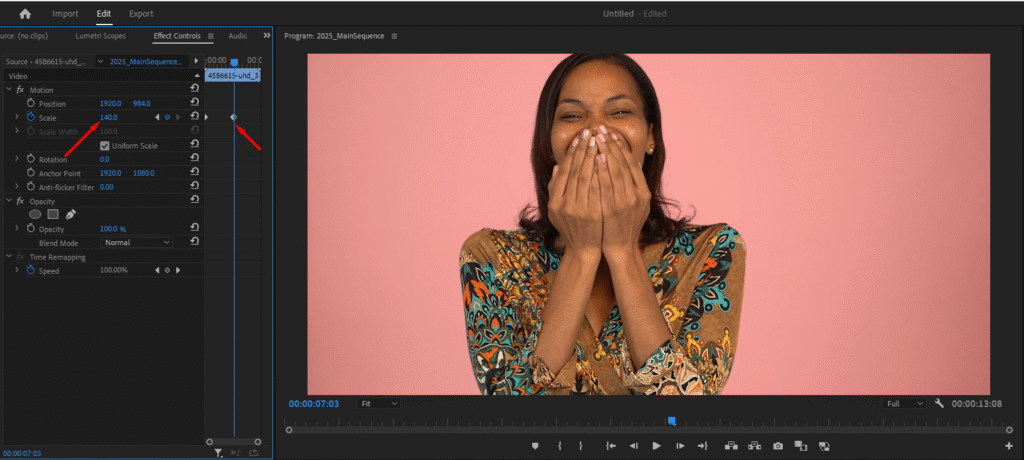
Drag the playhead to the moment you want the movement to end. Change the Scale number to your desired zoom level (for example, 140). Premiere Pro will automatically create the second keyframe and smooth out the motion between the two points.
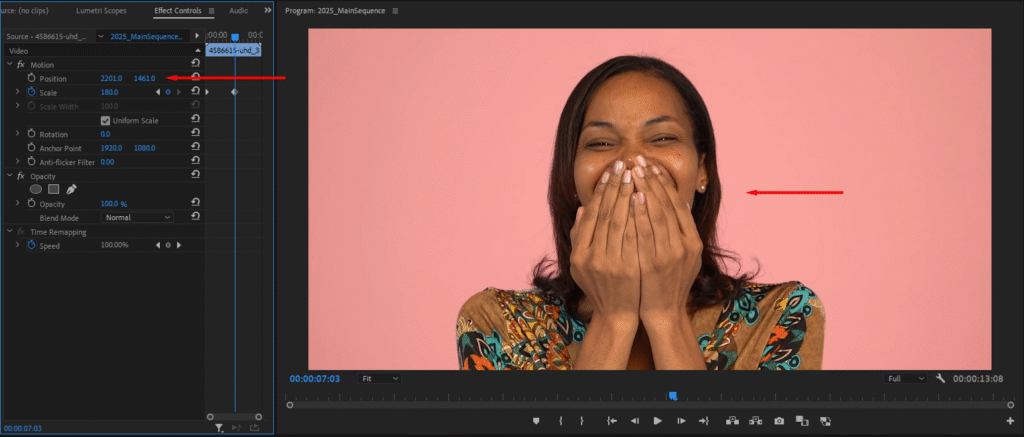
Depending on how far you zoom in, you might have to play around with the position values. For instance, say we zoom in to 180% on our example.
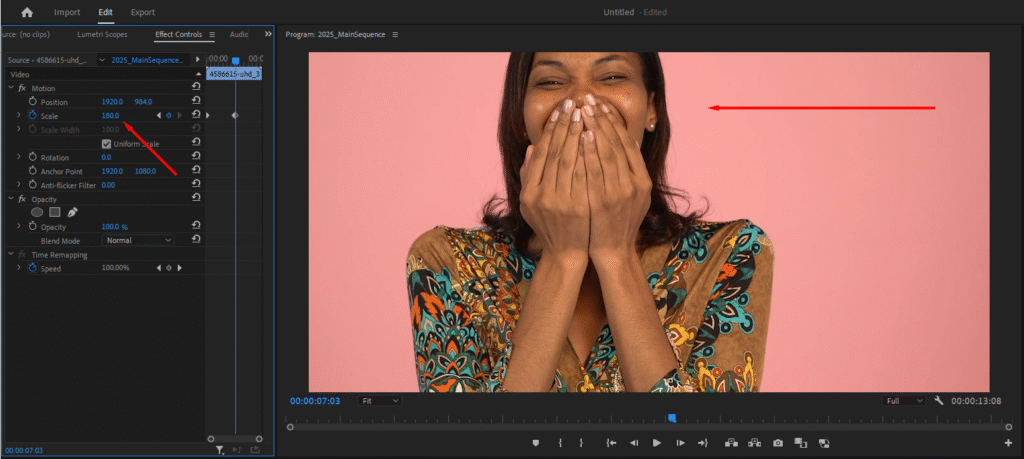
To keep the subject in the center of the frame in our example, we’d have to change the X and Y values quite a lot.
If you want to zoom out rather than in, do the opposite. Set the first keyframe to a certain zoom level over 100, then set the second keyframe to 100%. As your clip plays through, it’ll start cropped in and gradually expose the entire frame.
Add advanced zoom effects with Premiere Pro templates
Adding a basic zoom is a nice effect, but it rarely looks cinematic on its own. That’s why professional editors use a range of different techniques to tell a story. Here are a few common ones and why they work:
- The crash zoom: An extremely fast zoom into a subject. It adds sudden energy and is often used in comedy or action scenes to emphasize a reaction.
- The dolly zoom: When the camera moves backward while the lens zooms in. It keeps the subject the same size while the background warps around them.
- The whip zoom: Combines a fast pan with a zoom. It blurs the image a ton, making it an interesting way to cut between two different locations.
Creating these zooms from scratch is tedious, even if you nail the camera movements. You often have to keyframe scale, position, rotation, and blur effects simultaneously to get it right.
Templates solve this by giving you pre-built effects that you can drag and drop onto any clip. One step and you’ve got a professional-looking zoom transition.
Here are three great options from the Storyblocks library.
1. Lens Zoom Effect Transitions
An explosive Premiere Pro template that breathes life into your edits with 24 transitions in four unique styles. And even better, each transition comes with its own built-in sound effect. It’s super easy to use, especially for beginners, and requires no external plugins. There’s a detailed video tutorial to help you get started.
2. Zoom Focus Effects
This pack provides a set of 12 zooms that give you a kind of perspective effect. It lets you pan across a screen and zoom in at different points, as if a narrator is scanning the frame for details. This is really useful for creating a CCTV scanning effect or a bird’s-eye view for drone shots. It also includes a video tutorial.
3. Zoom Swirl Transitions
If you need volume and variety, this pack has 50 effects in eight styles. These are pure transitions that use the zoom to create a whirlpool look, twisting the footage as it cuts. It comes with a unique sound design for each transition, so the audio matches the speed of the swirl. Like the others, it’s easy to use and includes a video tutorial.
If you’re interested in these templates and want to learn more, check out our detailed guide on how to use and customize templates in Premiere Pro.
Learn how to do even more in Premiere Pro
Now that you know how to zoom in on a clip in Premiere Pro, why don’t you upskill in some other areas?
- Learn how to crop in Premiere Pro
- Find the best intro templates for your next video
- Discover how to make your footage look cinematic with black bars
When you’re ready, sign up for Storyblocks to get unlimited downloads of over 6 million high-quality stock assets. Our subscription gives you access to 8K, 4K, and HD footage, including pre-edited videos that zoom in. You can also find professional Premiere Pro zoom templates, music, sound effects, images, and more.
We also offer an AI Toolkit to speed up your workflow. It includes a Video Editing tool that lets you customize any footage clip in our library using a text prompt powered by Runway’s Aleph, and an AI Voiceover tool powered by ElevenLabs technology.