Stock footage is an incredible resource for creators – but it’s not always possible to find the perfect shot for every project. Sometimes it just needs a small change, but in some cases the amount of time you’d have to spend editing a clip to make it work isn’t worth it. Especially since video editors are already under tons of pressure to deliver under tight timelines.
With our new AI Video Editing tool, you have the power to quickly make those edits. No software or manual editing required. In this article, we’ll show you how it works, ways to use the tool, and best practices for writing prompts to get the shot you need.
What we’ll cover in this article
What is AI Video Editing?
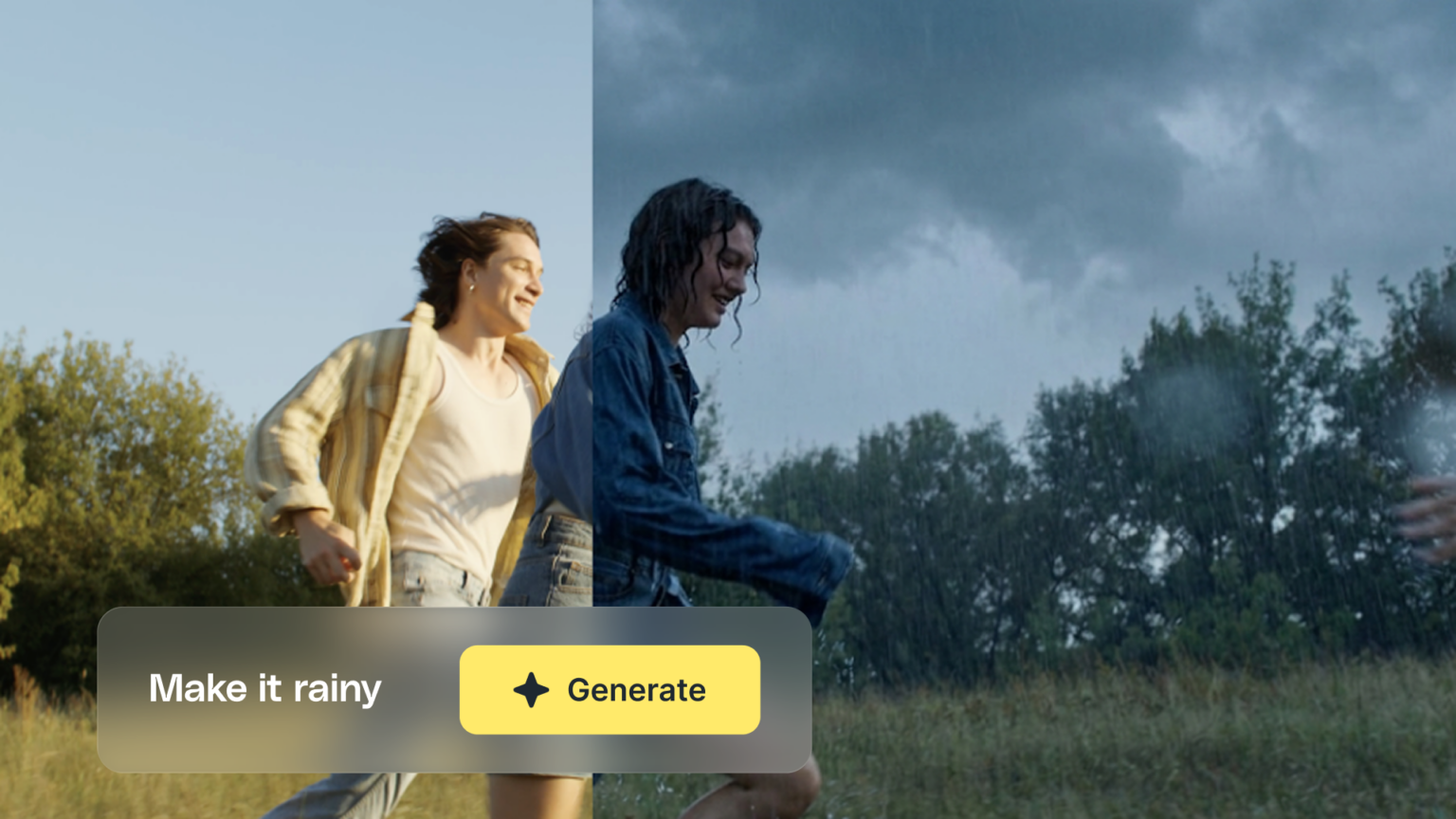
Part of a new AI Toolkit directly integrated into the Storyblocks platform, Video Editing gives you the power to customize any stock footage clip in our library. Powered by Runway’s Aleph, you can directly edit footage by typing in a prompt that describes the changes you want to make.
From removing or changing backgrounds to manipulating objects, lighting, and more, the creative possibilities are endless. It all just comes down to how you write your prompt.
Tips for writing effective prompts
So what goes into creating a prompt that will get you the results you want with AI Video Editing? A lot of it will boil down to experimentation, but there are a few key tips that we’ve learned to help you get started.
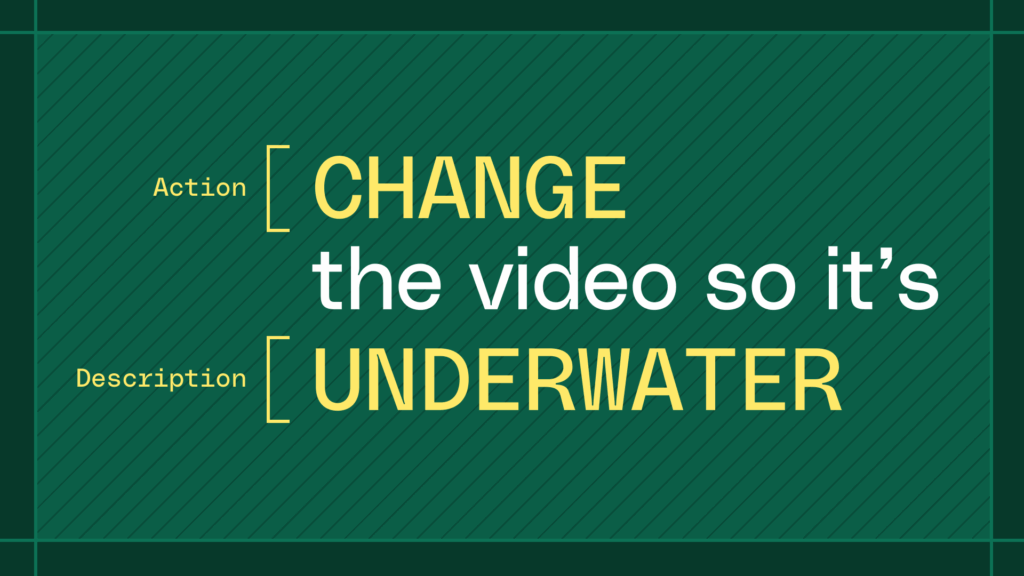
Start with an action verb of the edit you want to make
The first word you use in your prompt should signal what you’re looking to do to the footage clip with your edit.
We recommend using action verbs like:
- Change
- Remove
- Add
- Replace
- Re-color
- Re-light
Brief is best – no need to start with “I want to change..” or “In the footage, change..”
Then, describe what you want to change
Once you have your action verb, then you’ll want to add exactly what kind of transformation you’re looking to have happen. How detailed you get here will depend on the specifics of what you want to be included in the edit.
Some prompts can benefit from including language that specifies what to keep the same in the edit, but keep in mind that it doesn’t always work for every prompt. Try listing out what to keep the same versus just saying, “Keep everything else the same.”
Simple or one-off changes
For example, let’s say you wanted to re-color an umbrella in a shot from black to a specific shade that matches your brand’s visual guidelines. You’d be better off using the hex code vs a more general description so that you get the exact shade you’re looking for: “Re-color the umbrella to be #1D710D.”
Multiple changes
If you have a clip where you want to change the time of day from evening to sunrise and add a layer of fog in, you can keep your description more general. Ex: “Change the time of day to sunrise and add a layer of fog.”
Though if you want the fog to be in a specific area or heavy/light, be sure to include those details. Ex: “Change the time of day to sunrise and add a light layer of fog in [specified area].”
For more complicated changes or making multiple changes to a video, try to keep your prompt specific but brief. Too many changes or overly long prompts can increase the chances of producing an edit that doesn’t match the original footage as closely as you may want it to.
Brief prompt: “Replace the bottle with a cellphone, remove people in the background, add a laptop on the table.”
Overly long prompt: “Remove the bottle in the woman’s hand and replace it with a cellphone. Also remove the people who are walking in the background behind her. Then, add a laptop onto the table behind the woman.”
4 creative ways to use AI Video Editing
Now that we’ve covered how to write good prompts for the AI Video Editing tool, let’s dive into the ways that you can use it. Inside the editor, you’ll see a few different suggestions you can choose from to get you started. Let’s dive into some of the edits you can make with the tool.
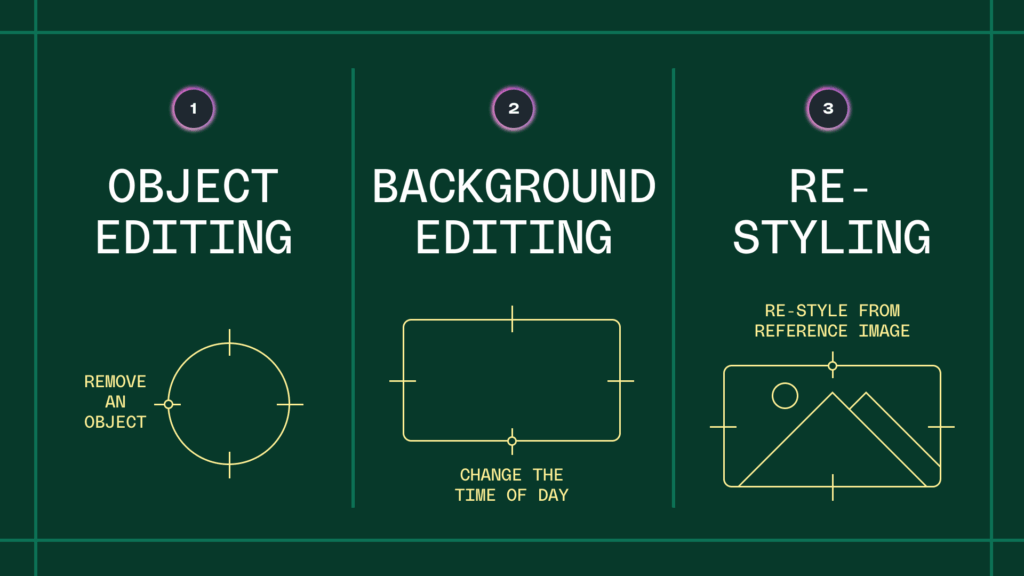
1. Manipulating an object
When it comes to objects in a footage clip, you have tons of options you can explore using the AI Video Editing tool. You can change the color, the size, the details, or location of an existing object. Or you can remove an object entirely.
Example prompt: “Remove the street signs in the background of the scene and replace them with palm trees.”
You can also replace an object with something else, like swapping a phone for a book. If a person is in the background of a clip, you can also remove them from the scene.
2. Changing the background of a clip
If you find a footage clip that has a scene or person that fits what you’re looking for, but the background needs to change, you can use AI Video Editing to change it. Just use the prompt box to type in the background you want.
Example prompt: “Change the background to a sunny beach with a calm ocean and seagulls flying.”
You can do anything from changing out the environment or weather, updating to a different location, switching the season, or adjusting the time of day.
3. Adjusting the visual style
The last creative way to use AI Video Editing that we want to highlight is updating the visual style of a clip.
You can do anything from making a footage clip animated to giving it an archival footage look and feel. Another option here is playing around with the color grading of a clip.
Example prompt: “Update the aesthetic of this video to be more 70s, with a softer vintage look.”
4. Relighting a scene
If a footage clip isn’t lit in the way you would prefer or needs to match lighting from another clip in a project, you can write your prompt to make those changes. Whether you want to create more dramatic lighting with shadows or soften the existing lighting in a scene, you can make it happen in just a few minutes.
Example prompt: “Change the lighting to be softer and pink-hued to match the attached image.”
Try out AI Video Editing for yourself
Now that you’ve learned how the tool works and seen all the ways it can be used, you can sign up to try it out for yourself. To access the tool, hover over any footage clip in our library and select Edit with AI.
With a Storyblocks subscription, you’ll get access to the complete AI Toolkit to try out this tool, along with Voiceover, Video Generator, and Image Generator, on top of unlimited downloads of over 7 million royalty-free footage clips, music tracks, video templates, images, and much more. And everything is backed by our comprehensive license, so you can create with confidence.