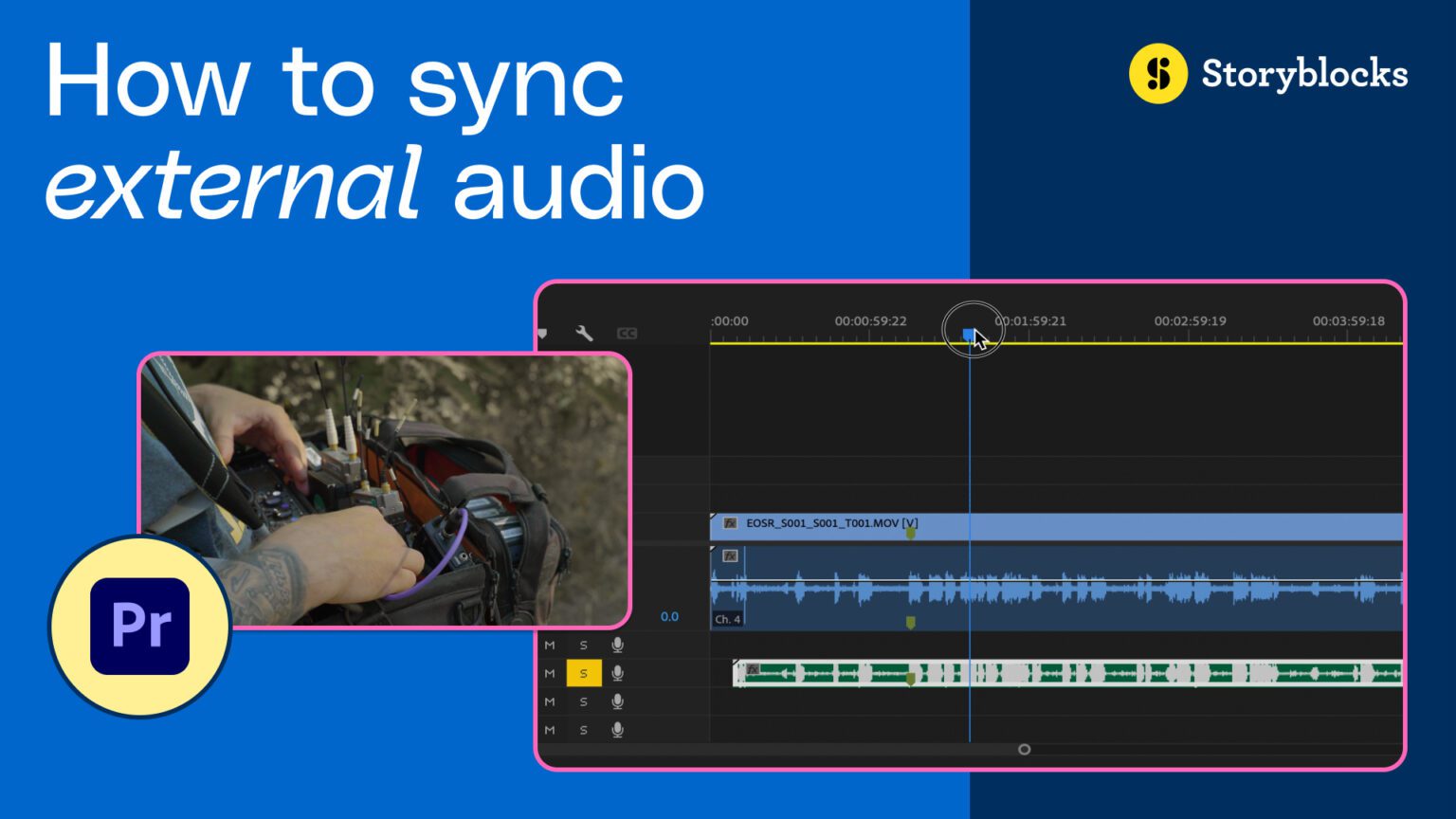
Getting audio and video to line up just right makes any video look sharp and professional. Adobe Premiere Pro, a top video editor, offers two smart ways to sync sound and picture perfectly. These methods make juggling multiple clips easier and speed up editing like a pro. One time, I synced a long interview without a hitch using these tricks and saved hours. Fun fact: Premiere’s auto-sync tool can match sound waves even if your camera’s audio is off by a few seconds. This helps anyone aiming to polish videos without fuss or confusion. Check out the quick shorts video below to see how simple it can be. Stick around and discover how to make your videos flow like a smooth river—because great syncing makes all the difference.
Two ways to sync audio and video in Premiere
Audio sync method 1: The Quick Synchronize Button
If you’ve recorded scratch audio on your video track, Premiere Pro makes the syncing process incredibly straightforward. Here’s the first way you can sync audio and video in Premiere Pro.
Step 1: Select Both Tracks
Highlight both the source video track and the external audio track.
Step 2: Right Click and Sync
Right-click on the selected tracks, then choose the “Synchronize” option.

Step 3: Choose Synchronize Point
Ensure that “Audio” is selected as the synchronization point and click “Okay.”
If the automatic synchronization doesn’t give you the results you want, don’t worry; there’s another way that you can perfectly sync your audio and video.
Sync audio and video method 2: Fine-Tuning with Audio Markers
Step 1: Configure Audio Settings
Open your Audio settings and confirm that “Play audio while scrubbing” is enabled. Click “Okay” to apply the changes.

Step 2: Scrub to a Clear Vowel Sound
Scrub through your external audio until you find a section with a distinct vowel sound. With the clip selected, press ‘M’ to place a marker.

Step 3: Repeat for Scratch Audio
Now, scrub to the same point in your scratch audio clip and identify the specific vowel sound. Once again, press ‘M’ to place a marker.

Step 4: Align the Markers
It’s as simple as aligning these two markers. Premiere Pro will adjust the clips to ensure synchronization.

Find high-quality royalty free stock assets for any project
Perfectly syncing audio and video is a critical aspect of video production, and with Adobe Premiere Pro, it doesn’t have to be a daunting task. Whether you opt for the quick sync option or the precision of markers, these methods ensure that your final product is ready to post. If you’re looking for more ways to level up your videos, Storyblocks has thousands of Premiere Pro templates that let you instantly add professional effects. With a Storyblocks subscription, you’ll have millions of footage clips, music tracks, sound effects, templates, and more to add to any project. Find a plan that fits your needs and start creating better video, faster than ever.
Looking for more Premiere Pro tutorials? Learn how to zoom in on a video, crop a video, or how to fade out audio.